
Step 1
Give it the opening
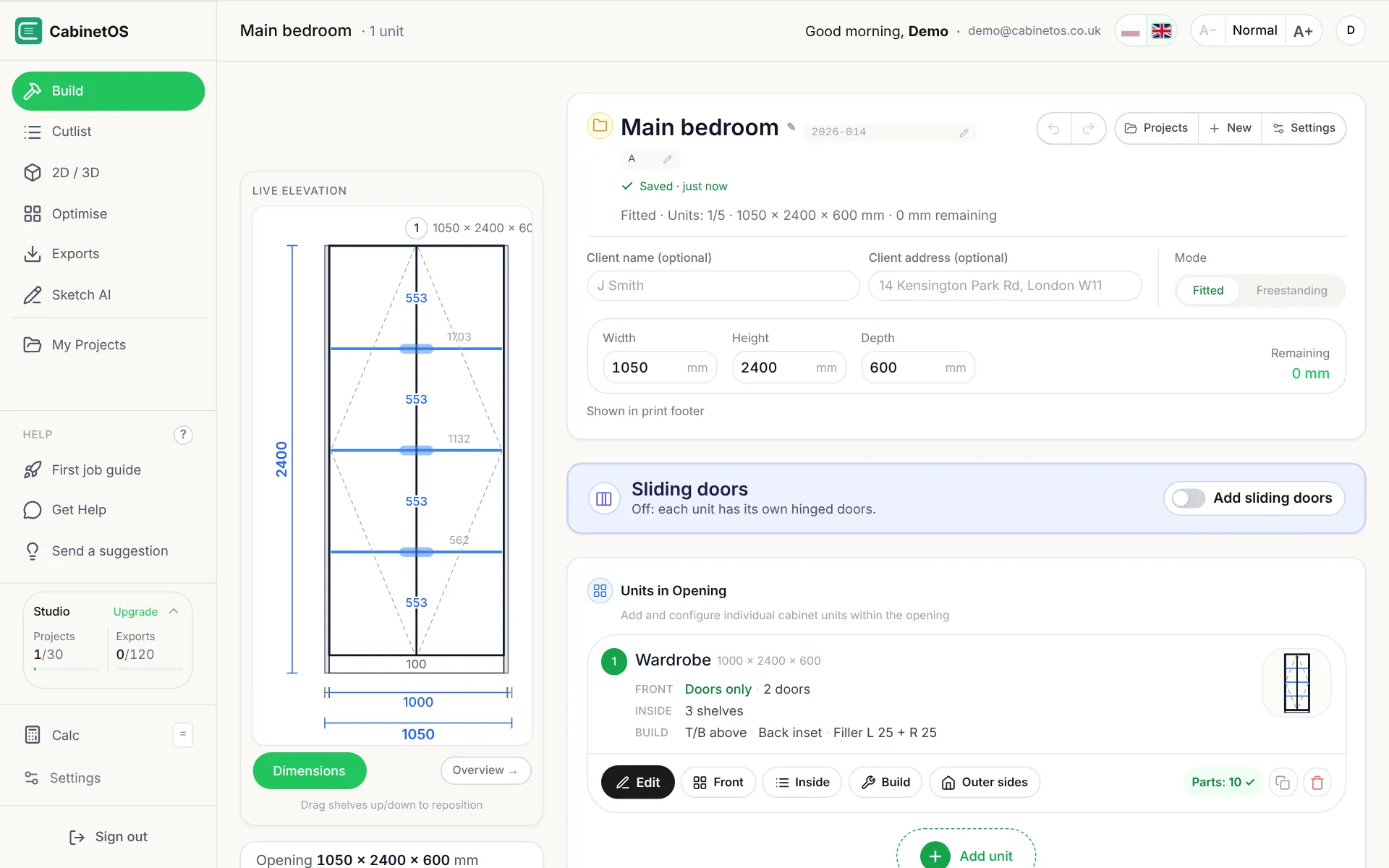
On Build, in the project card, tap Fitted: the project is now an opening between two walls, and the units have to fill it. Type 1050 for the width. The height and depth are already 2400 and 600 here; on your own job, type all three. Remaining shows what the units don't fill yet: the wardrobe is 1000 wide, so 50 mm.
Tap the picture to see it bigger
- Fitted: the units go in an opening between walls.
- The opening: 1050 wide, 2400 high, 600 deep.
- Remaining: the 50 mm the wardrobe doesn't fill yet.
Watch it · 5 s - Fitted: the units go in an opening between walls.
- The opening: 1050 wide, 2400 high, 600 deep.
- Remaining: the 50 mm the wardrobe doesn't fill yet.
Step 2
Take it up to the ceiling
On the wardrobe's card tap Edit, and on the Size step type 2400 for the height. The wardrobe now runs from the floor to the ceiling: its sides become 2264 mm and its doors 2297 mm high. If you'd rather stop short of the ceiling, tick Top infill under the plinth instead and the gap is filled with a strip.
Tap the picture to see it bigger
- Height: 2400, the same as the opening.
- The drawing follows: 2400 from the floor up.
- Sides: the next step, for the gaps at the walls.
Watch it · 4 s - Height: 2400, the same as the opening.
- The drawing follows: 2400 from the floor up.
- Sides: the next step, for the gaps at the walls.
Step 3
Close the gaps at the walls
Tap Sides. Under Scribe fillers type 25 for the left and 25 for the right. A scribe filler is a strip at the front of the wardrobe's end that you cut to the wall, so a wall that isn't straight leaves no gap. The fillers count in the opening, so Remaining goes to 0 mm. Tap Save changes.
Tap the picture to see it bigger
- Left filler: 25 mm.
- Right filler: 25 mm. Each one is cut the full height, 2400.
- Save changes: back to Build, with nothing left over.
Watch it · 7 s - Left filler: 25 mm.
- Right filler: 25 mm. Each one is cut the full height, 2400.
- Save changes: back to Build, with nothing left over.
Step 4
Pick the board
In the project card tap Settings. Under Board material tap Birch Plywood: every part of the project changes to it at once, as Part defaults underneath shows. The board size stays 2440 × 1220. It saves as you go, so close it with the ×.
Tap the picture to see it bigger
- Board material: one tap sets the board for every part.
- Part defaults: carcass, fronts, back and the rest, all birch plywood now.
- Close: it's already saved.
Watch it · 5 s - Board material: one tap sets the board for every part.
- Part defaults: carcass, fronts, back and the rest, all birch plywood now.
- Close: it's already saved.
Step 5
See the cut list follow
Tap Cutlist. The two scribe fillers are at the top, 2400 × 25, and every part is now Birch Plywood: 13 parts in all. The sides are 2264 mm and the doors 2297 × 496. The line at the top has the new totals: 5 boards and 20.58 m of edge banding.
Tap the picture to see it bigger
- The scribe fillers, the full height of the wardrobe. No edge banding: they get cut to the wall.
- The sides: 2264, 300 mm longer than in the first guide.
- The boards to buy for this job.
Watch it · 6 s - The scribe fillers, the full height of the wardrobe. No edge banding: they get cut to the wall.
- The sides: 2264, 300 mm longer than in the first guide.
- The boards to buy for this job.
How CabinetOS worked it out
The same fixed rules as in the first guide, now with a 2400 height and the fillers, in 18 mm board.
- Sides
The height, less the 100 mm plinth, less the top and bottom that sit over the sides.
2400 − 100 − 18 − 18 = 2264
- Doors
The box is the height less the plinth, and doors stop 3 mm short at the top. The width doesn't change: two doors, 4 mm off each.
2400 − 100 − 3 = 22971000 ÷ 2 − 4 = 496
- Scribe fillers
As tall as the wardrobe and as wide as you typed. With the wardrobe they fill the opening exactly.
1000 + 25 + 25 = 1050
- Edge banding
The same edges as in the first guide, on longer sides and doors. The fillers have none.
20.58 m
Next guide
Know your account before your first real job.
Your plan and what it counts, what uses an export, English or Polish, bigger text, and one account on your phone and computer.
Read the guideReady for your own job?
Make your own projects, save them and get the files. Free to start.